Wdeck 1.1.6 for Windows 10 and 11. The pictures below are taken from the current version of the app.
The window
The app opens on the list of your decks. The rail on the left switches between its views: Devices, the layout editor, Layouts, Settings, Discord, Install firmware, Serial console, Updates and About.
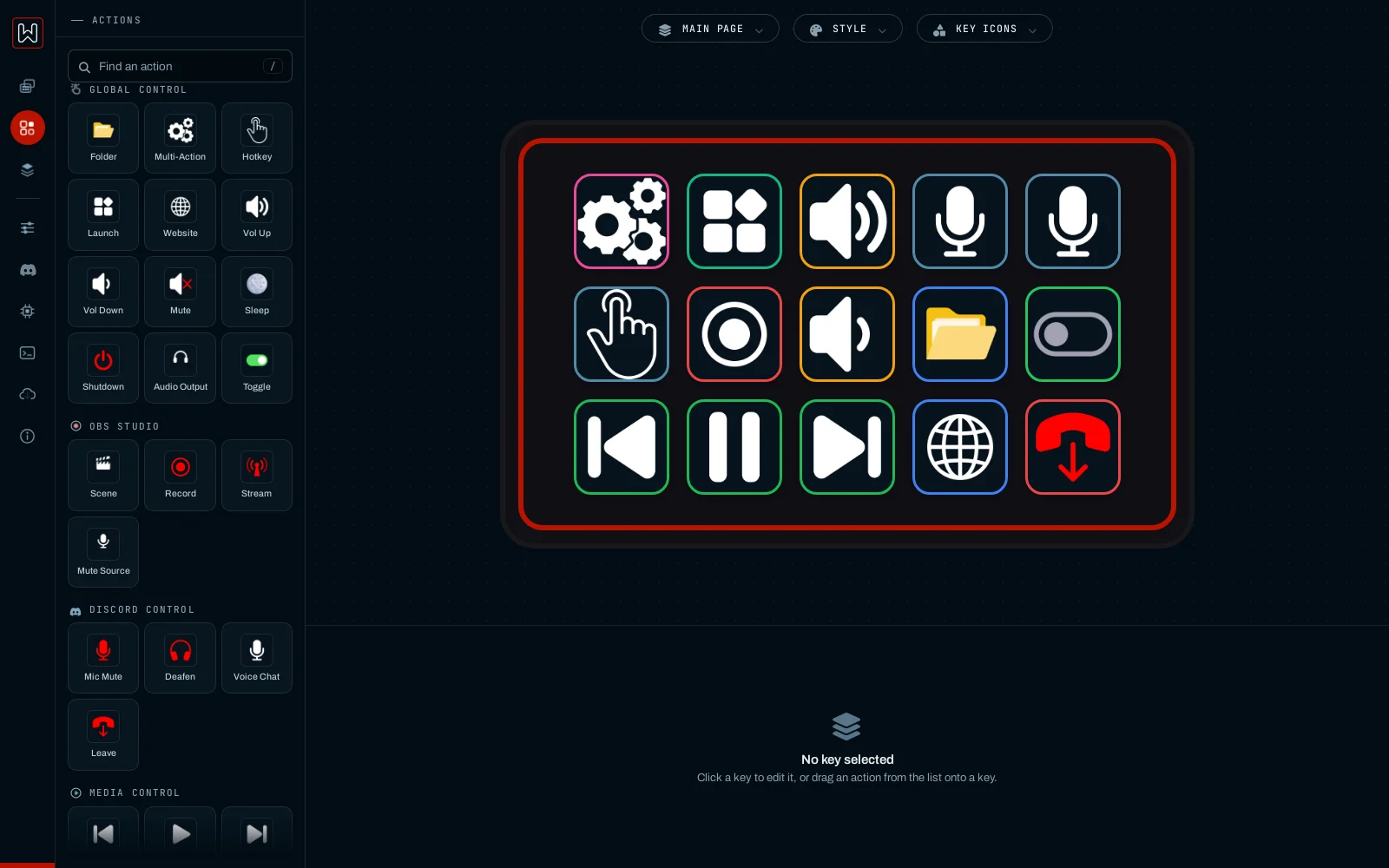
The editor: actions on the left, the deck in the middle, the key settings appear below it.
Actions: every action a key can run, grouped by topic. Type / to search.
The deck: the fifteen keys as the Wdeck draws them. Drag an action onto a key, drag keys to move them.
Main page / Style / Key icons: switch the page you edit, recolour the case and stripe of the preview, and pick an icon style for built-in pictures.
Devices
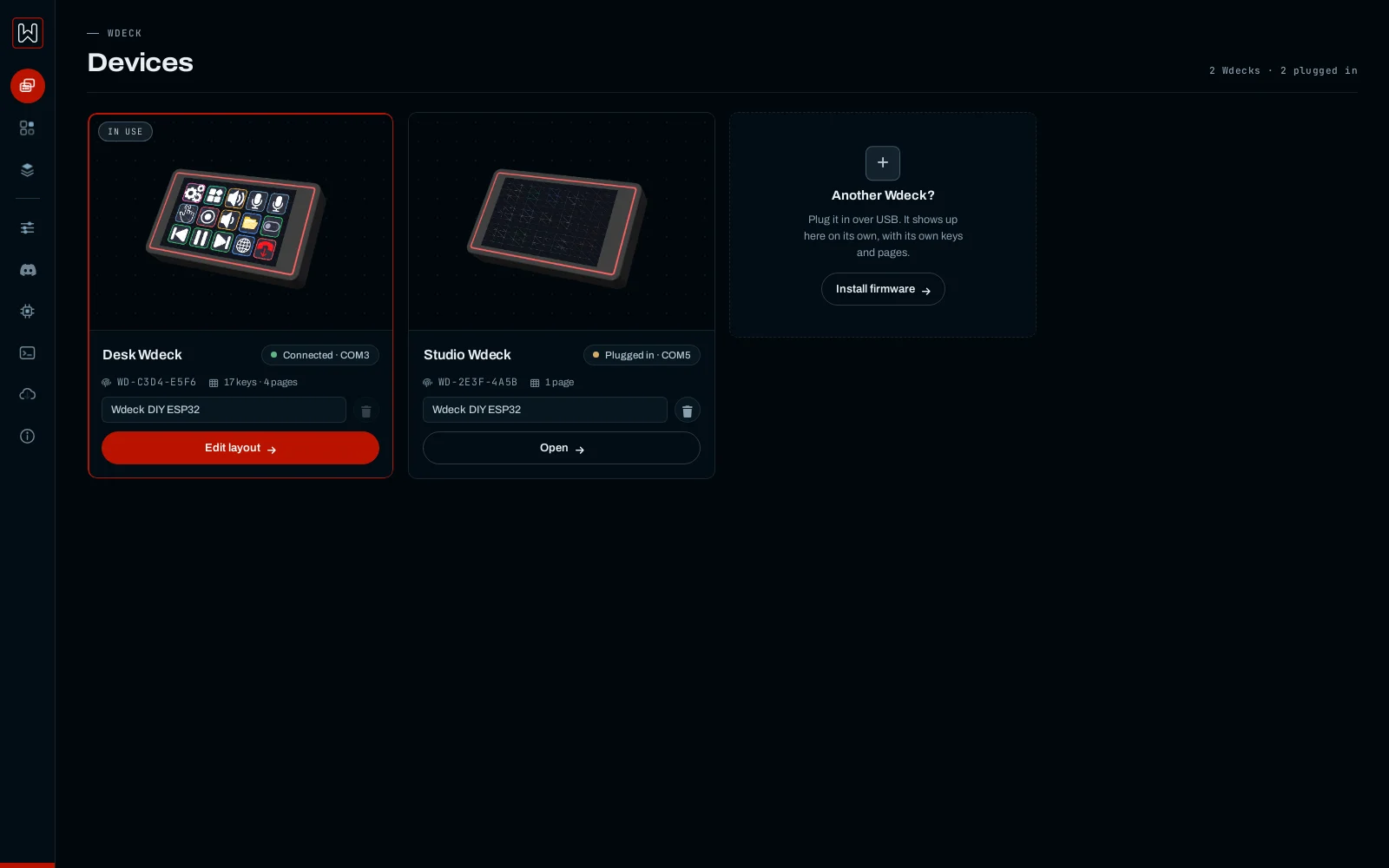
Every Wdeck that has been plugged in appears here with a picture of its keys. Each one is recognised by its chip, so it keeps its own pages, brightness and display settings. Only one deck is driven at a time; pick one to edit it.
Two decks on one computer, each with its own layout.
Editing a key
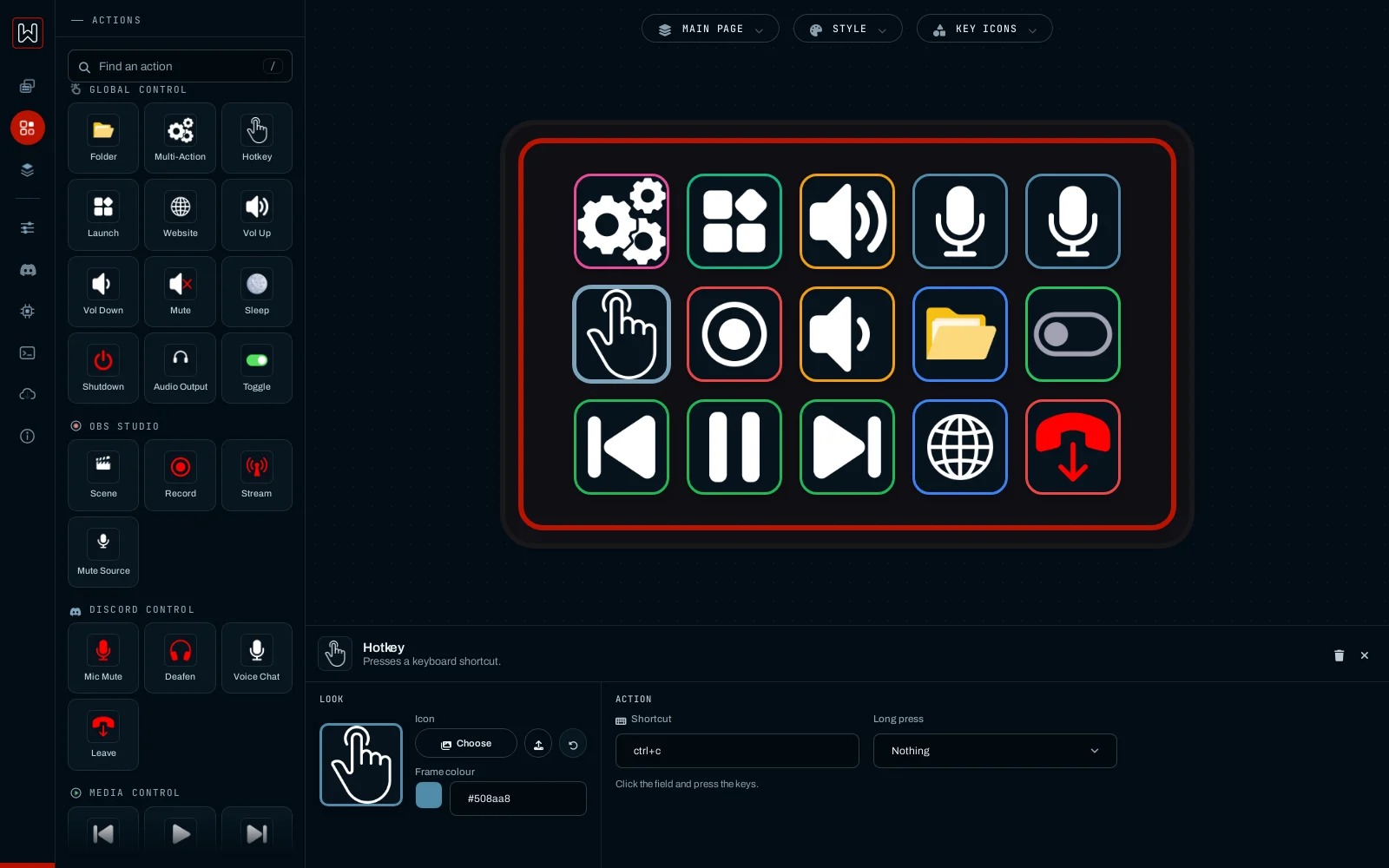
Click a key to open its settings under the deck. On the left is its look: the picture (choose a built-in icon, upload your own image or animated GIF, or reset) and the frame colour. On the right is its action.
A Multi-Action key: steps run in order: shortcuts, programs, pauses.A Hotkey key: click the field and press the shortcut to record it.
Long press: many keys can run a second action when held. The key runs its normal action on release and the long-press action once you hold it.
A Folder key opens a page of fifteen more keys. The page gets a Back key by itself. Press Open folder in the key settings to edit the page behind it.
A folder key and its button to open the page behind it.
Toggles
A Toggle key is a switch with two states. Each state has its own picture, colour, title and action, for example one shortcut to start something and another to stop it.
Switched off and switched on: two looks, two actions.
Layouts and presets
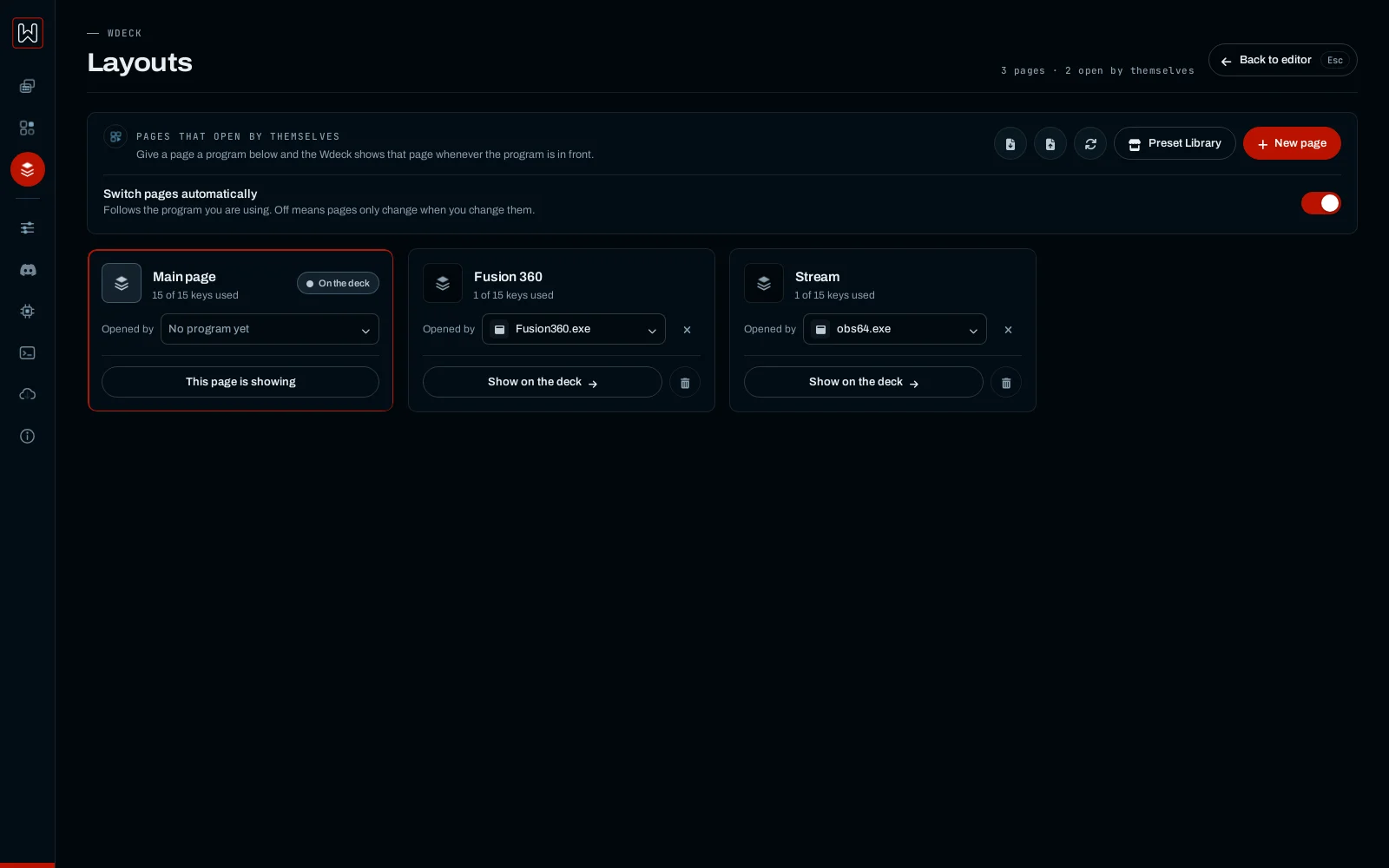
The Layouts view lists every page. Link a page to a program and the deck shows it while that program is in front; Switch pages automatically turns this on or off. You can rename and delete pages here, and save or load the whole layout as a file.
Pages linked to the programs that open them.
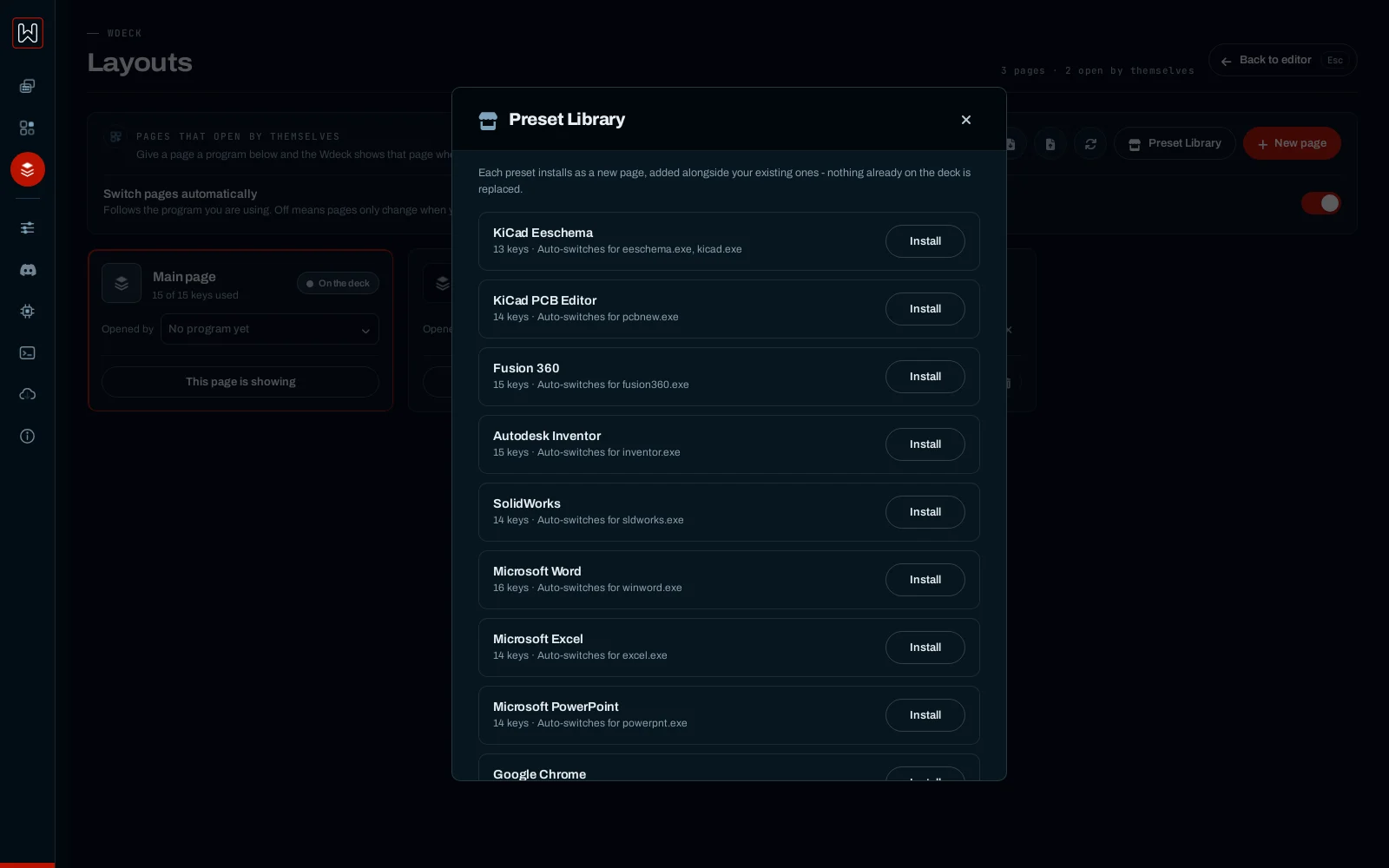
The Preset Library installs ready-made pages for Fusion 360, KiCad, Autodesk Inventor, SolidWorks, Word, Excel, PowerPoint, Chrome, Google Docs and Sheets and OBS. A preset is added as a new page; nothing you have is overwritten.
The Preset Library.
Only load layout files you trust: a key can start any program on your computer.
General settings
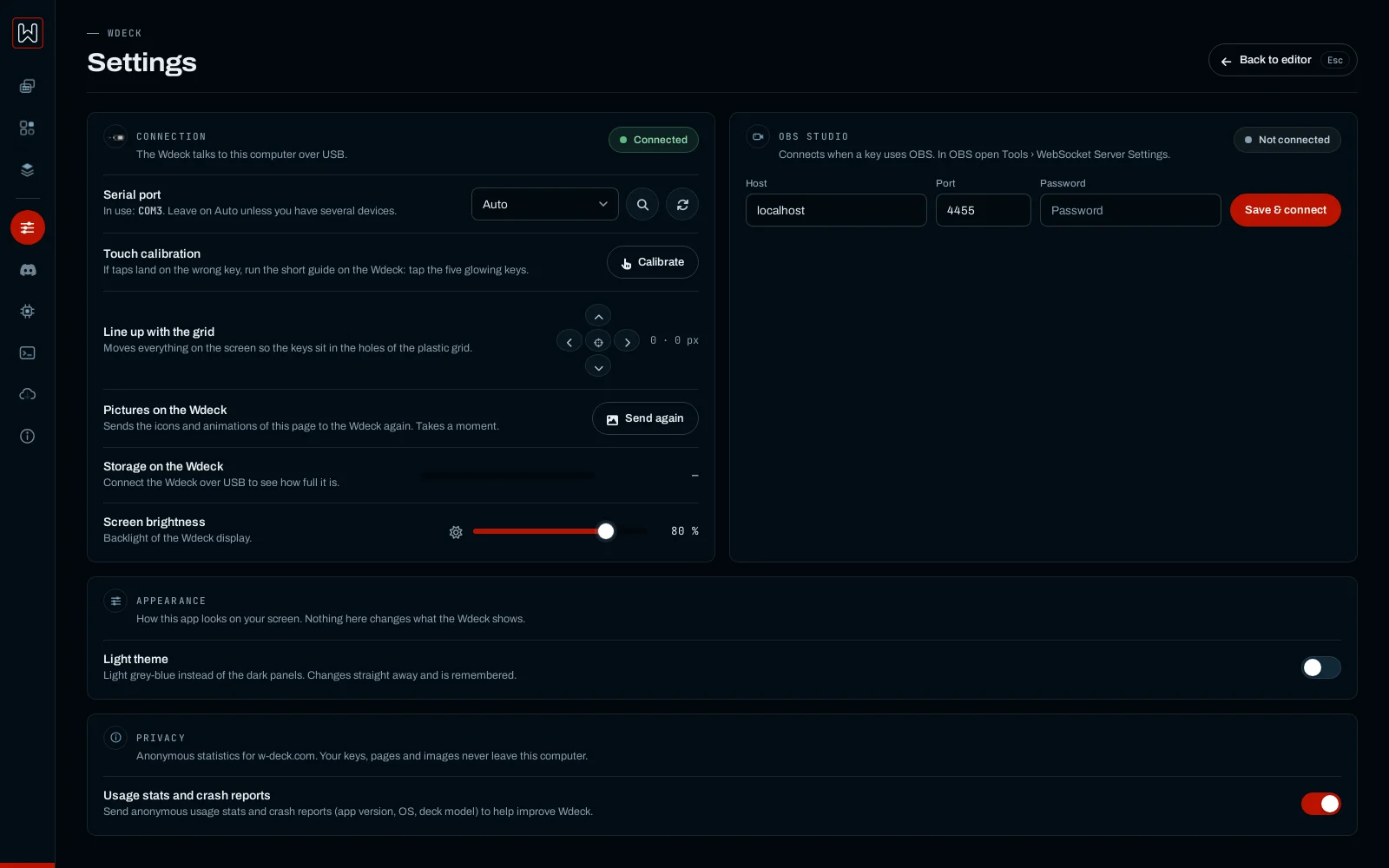
Serial port: Auto finds the Wdeck by itself; pick a port by hand if you have several serial devices.
Touch calibration: starts the calibration guide on the deck: tap the highlighted keys.
Line up with the grid: nudges the keys so they sit behind the openings of the bezel.
Pictures on the Wdeck: Send again re-sends the pictures of the current page.
Storage on the Wdeck: how much room for pictures is left on the deck.
Screen brightness: backlight of the deck; it is kept while the deck sleeps.
Appearance: a light theme for the app.
Privacy: anonymous usage stats and crash reports, on or off (details).
Clear this page and Reset everything: remove keys; a reset also needs a new calibration.
OBS Studio
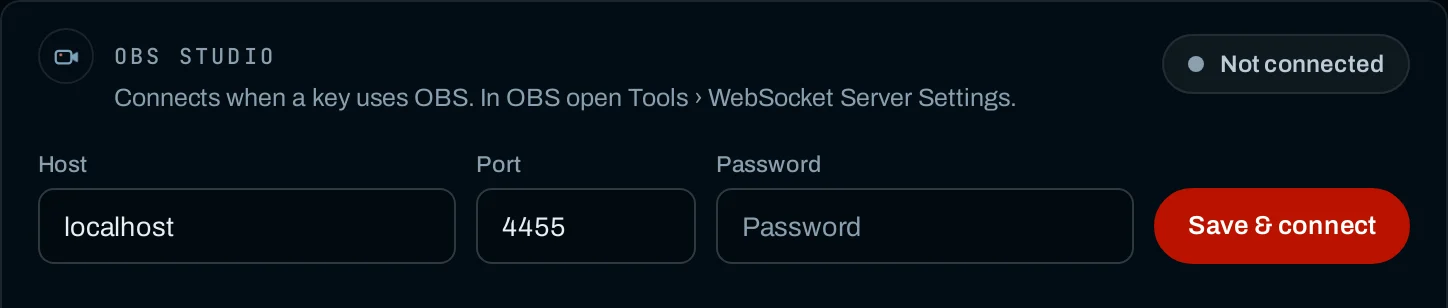
In OBS open Tools → WebSocket Server Settings and enable the server. Enter the host (localhost), port (usually 4455) and password here and press Save & connect. Scene, Record, Stream and Mute Source keys then show the live state.
Discord
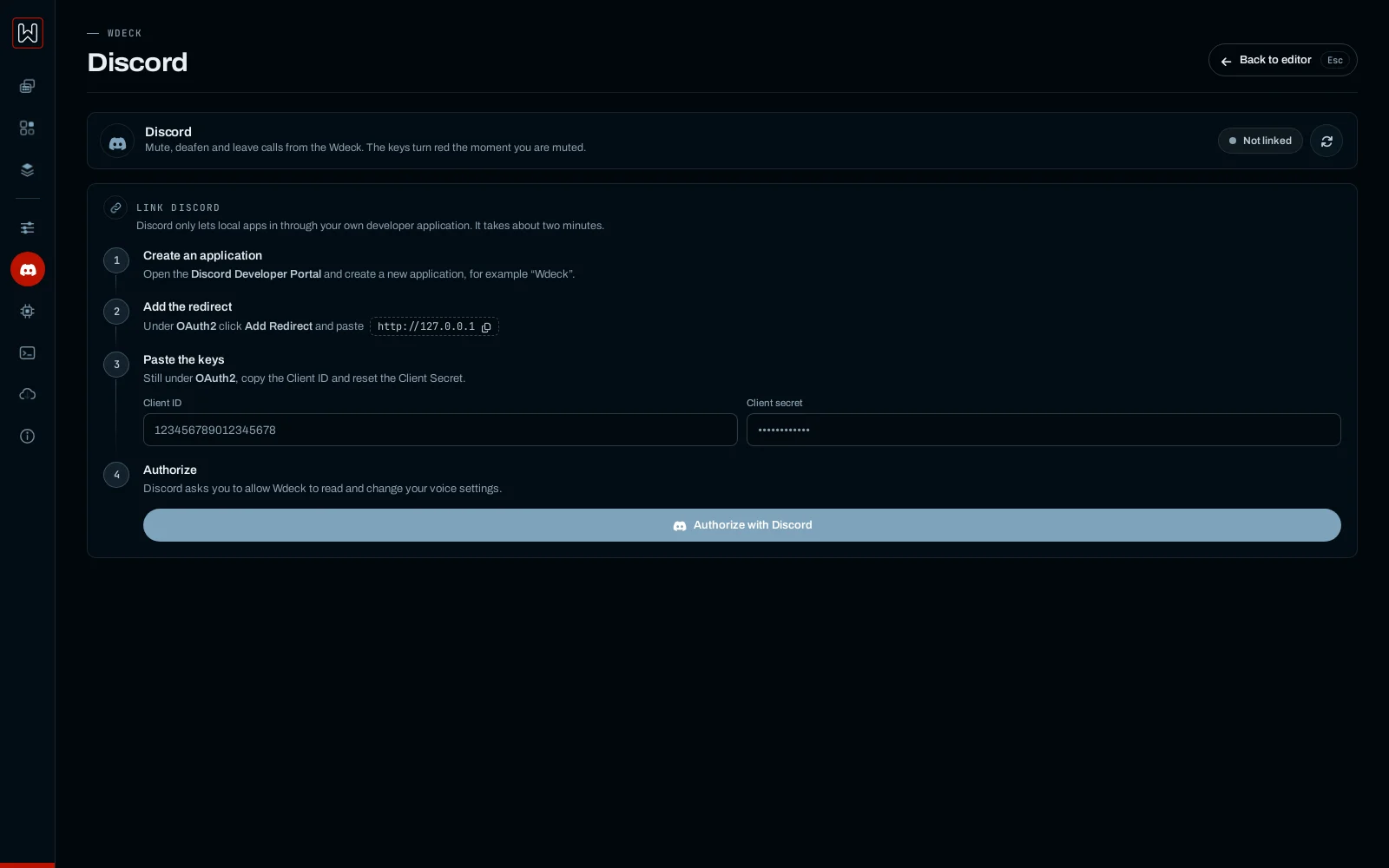
Discord lets local apps in only through your own developer application. Linking takes about two minutes:
Open the Discord Developer Portal and create an application, for example “Wdeck”.
Under OAuth2 click Add Redirect and paste http://127.0.0.1.
Still under OAuth2, copy the Client ID, reset the Client Secret and paste both into the app.
Press Authorize with Discord and allow Wdeck to read and change your voice settings.
The Discord desktop app has to be running; the browser version cannot be controlled.
Install firmware
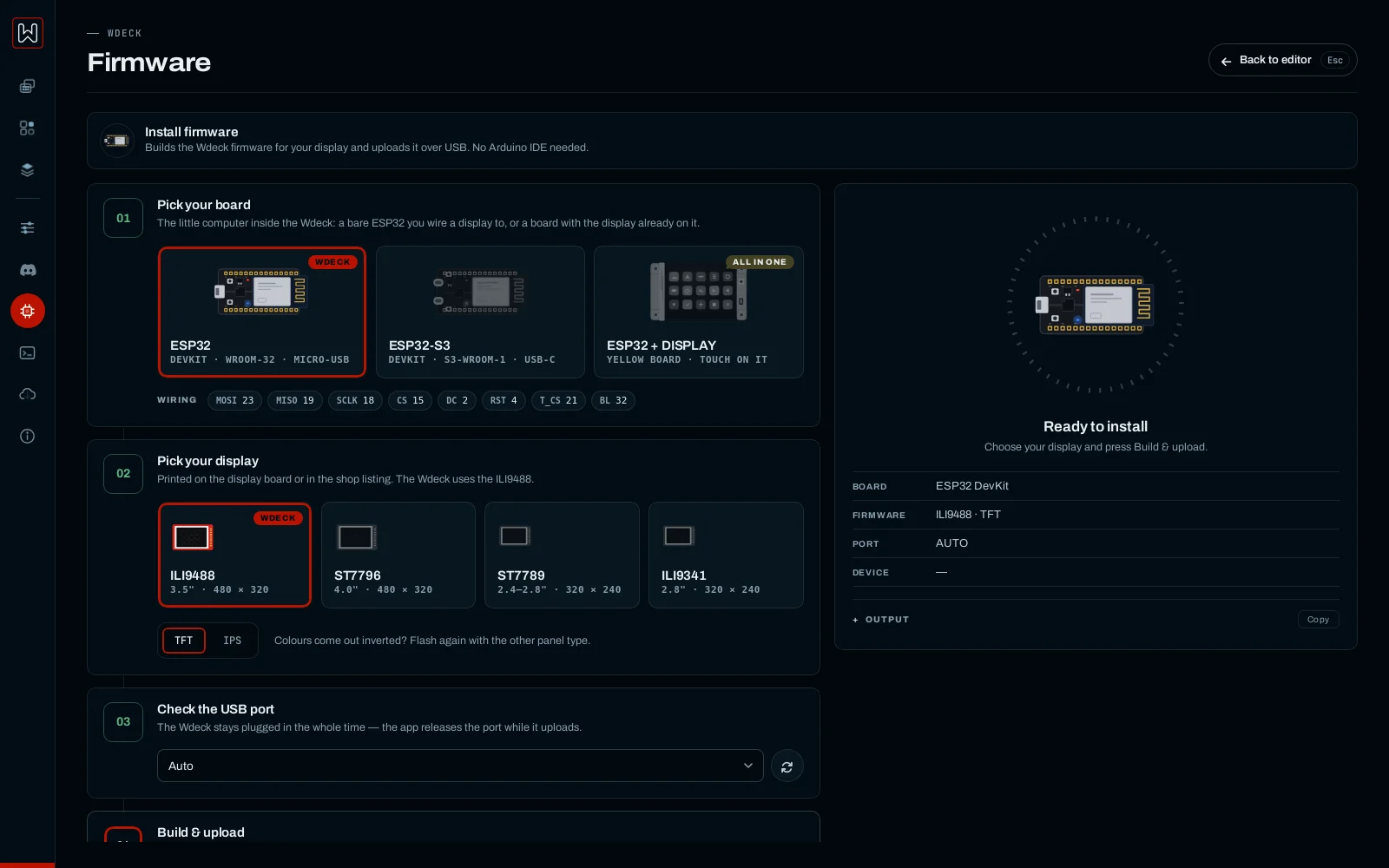
Pick the board (ESP32, ESP32-S3, or an ESP32 with the display already on it), then the display controller and TFT or IPS (for a board with its display, the display size), check the USB port and press Build & upload. A bare ESP32 shows its wiring as pin chips under the boards. The first build downloads the tools and takes a few minutes; later ones are quicker. The web flasher has the same steps and installs the same firmware for a bare ESP32.
Serial console
Everything the Wdeck reports, live. Useful when something does not behave. Quick commands: Ping (is the deck answering?), Screen test (colours and touch), Calibrate touch and Restart. The panel on the right shows which display the firmware found and its pins. More commands are in the firmware reference.
Updates and About
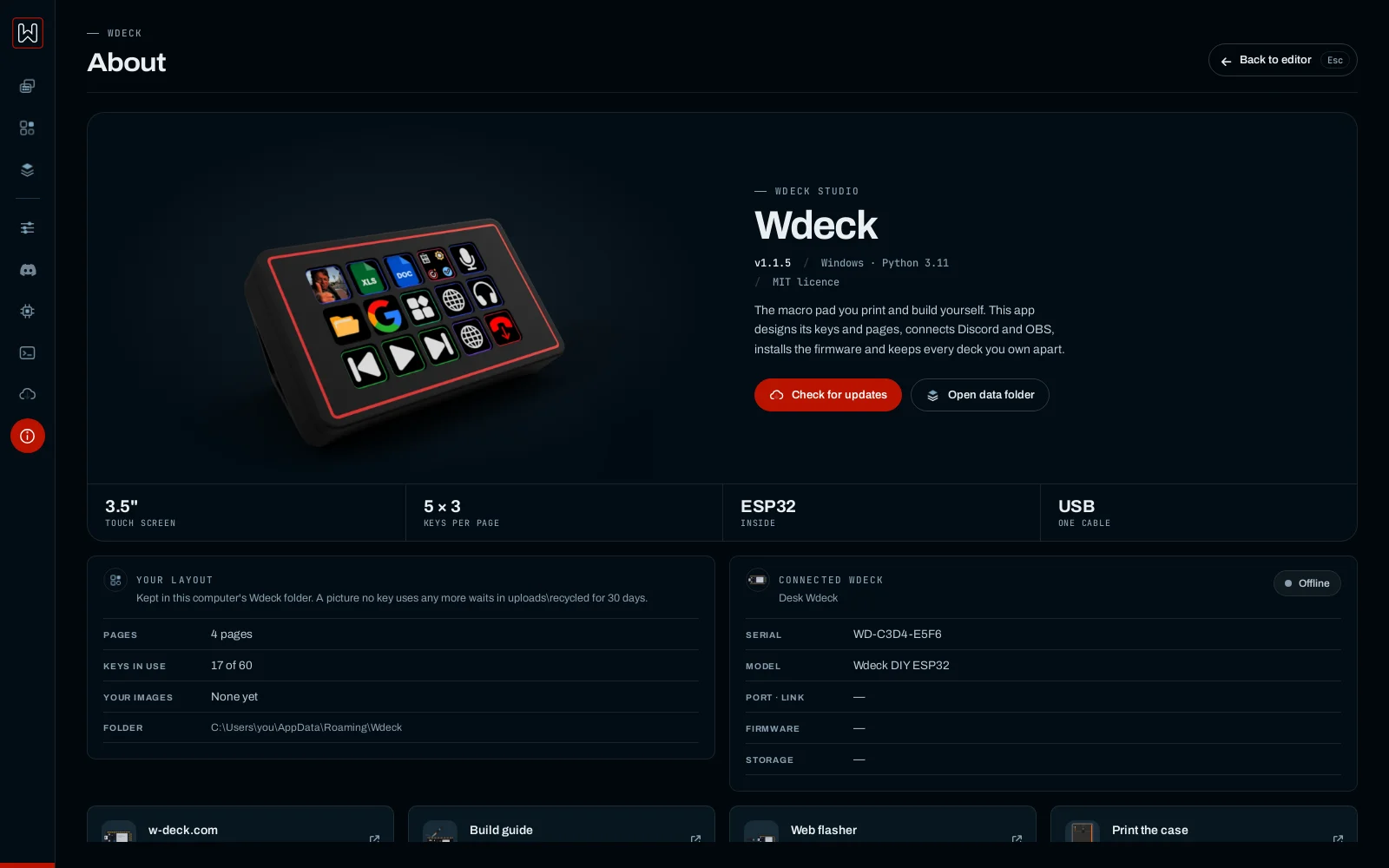
The app checks w-deck.com for a new version and installs it with one click; your layout and settings stay as they are. About shows the version, your pages and keys, the connected deck, and opens the data folder.
Your data lives in %APPDATA%\Wdeck: config.json (pages and settings) and uploads (your pictures). If config.json sits next to Wdeck.exe, the app runs in portable mode and keeps everything there.
In the background
Closing the window only hides it; the app keeps running in the tray. Quit from the tray menu.
The app starts with Windows (hidden, straight to the tray).
Starting it a second time opens another window of the running app.
Run it as administrator so shortcuts also reach games and programs running as administrator.