Guide 3 · The app

Set up the app.

Install the app, connect your Wdeck and put the first actions on keys. About fifteen minutes.

Step 01

Install the app.

3 minWindows 10 / 11

Download the app and start it. It opens its window and adds an icon to the tray; closing the window only hides it. The app starts with Windows from then on.

Run it as administrator: Windows blocks shortcuts sent to games and elevated programs otherwise. The app reminds you if it is not.
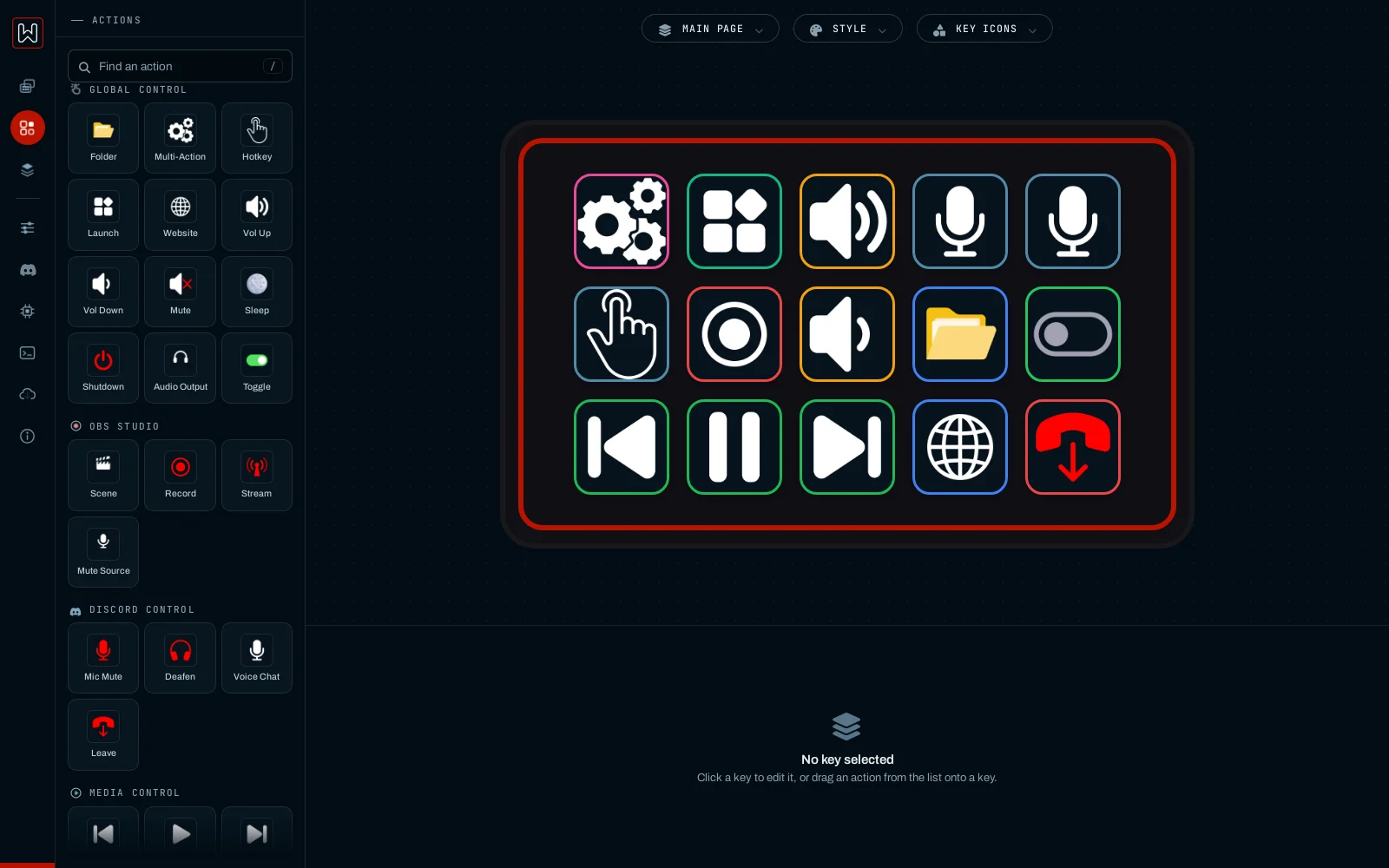
The layout editor
Step 02

Connect the deck.

1 minUSB data cable

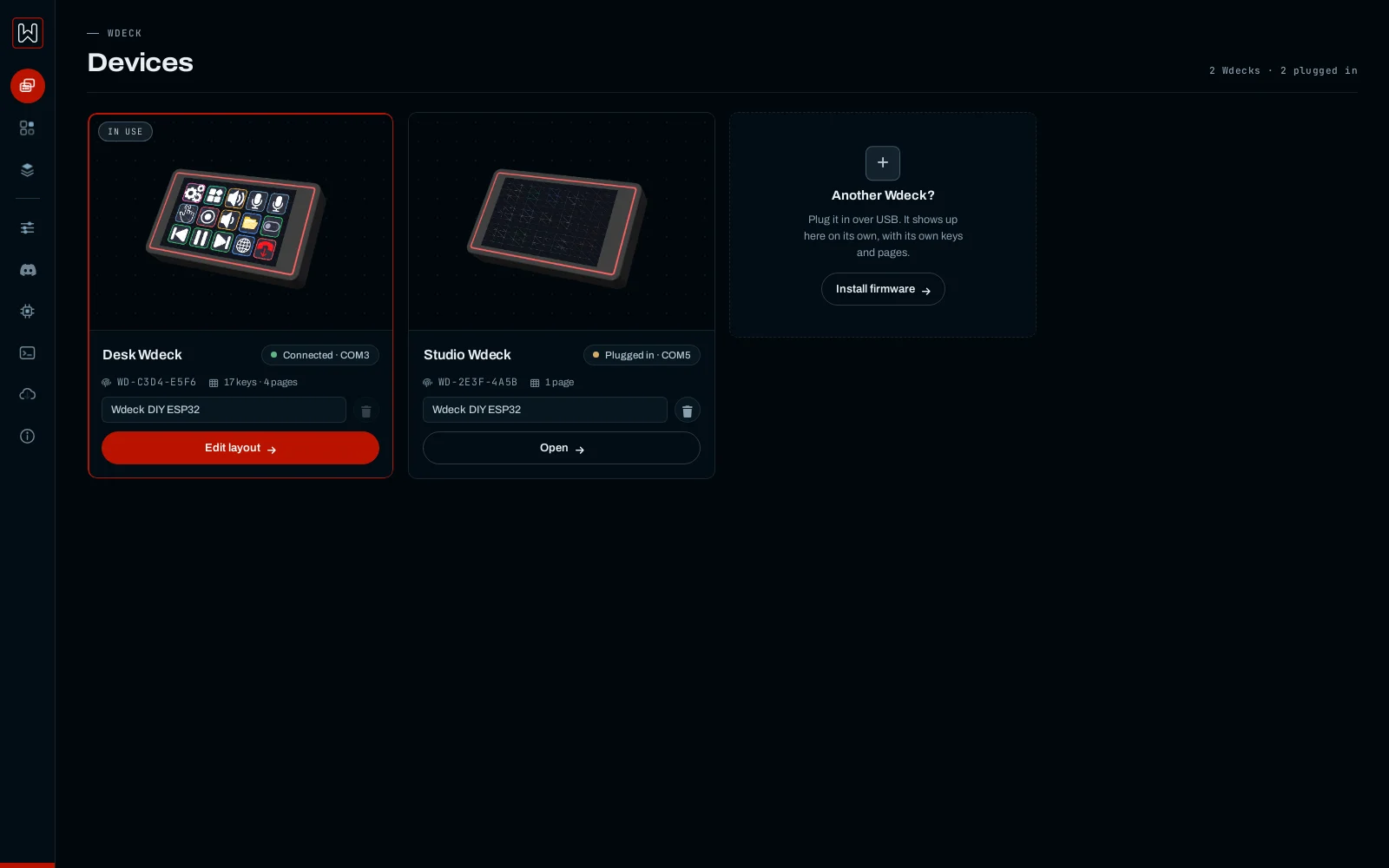
Plug the Wdeck in. The app finds the port by itself and opens on your devices. Each deck is recognised by its chip and keeps its own layout, so several can share one computer.

The port can also be picked by hand in Settings → General. If the deck shows nothing, it probably has no firmware yet; see Firmware updates.

Your decks
Step 03

Put an action on a key.

2 min

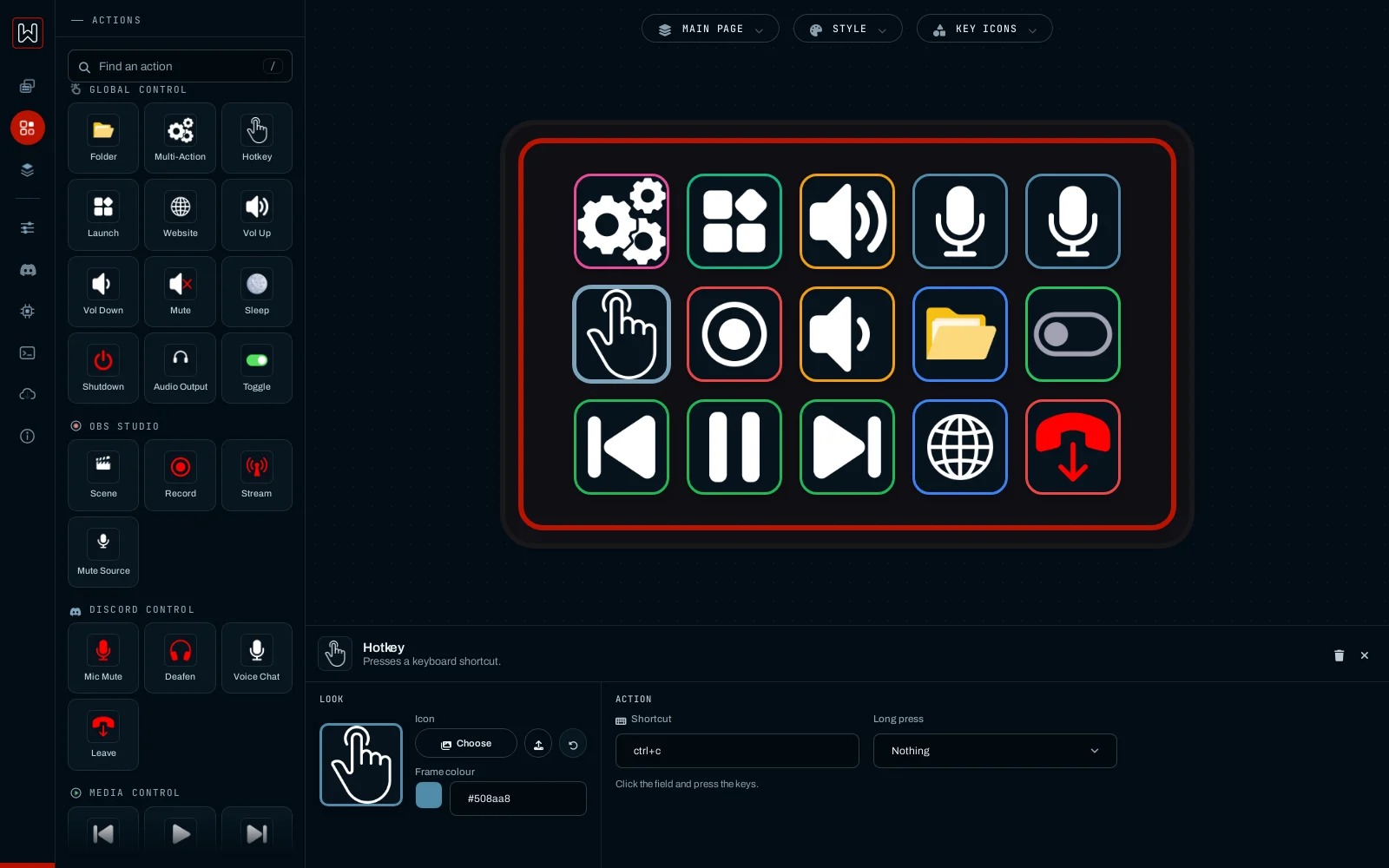
Drag an action from the toolbox onto a key, or press / to search for one. Click the key to set it up: for a Hotkey record the shortcut, for Launch pick a program, for Website paste the address.

Give it a picture (your own image, an animated GIF or a built-in icon) and a frame colour. The deck updates as you edit.

Setting up a Hotkey key
Step 04

Pages and folders.

A Folder key opens a page of fifteen more keys and gets a Back key by itself. Separate pages for work, games or a stream keep each one tidy.

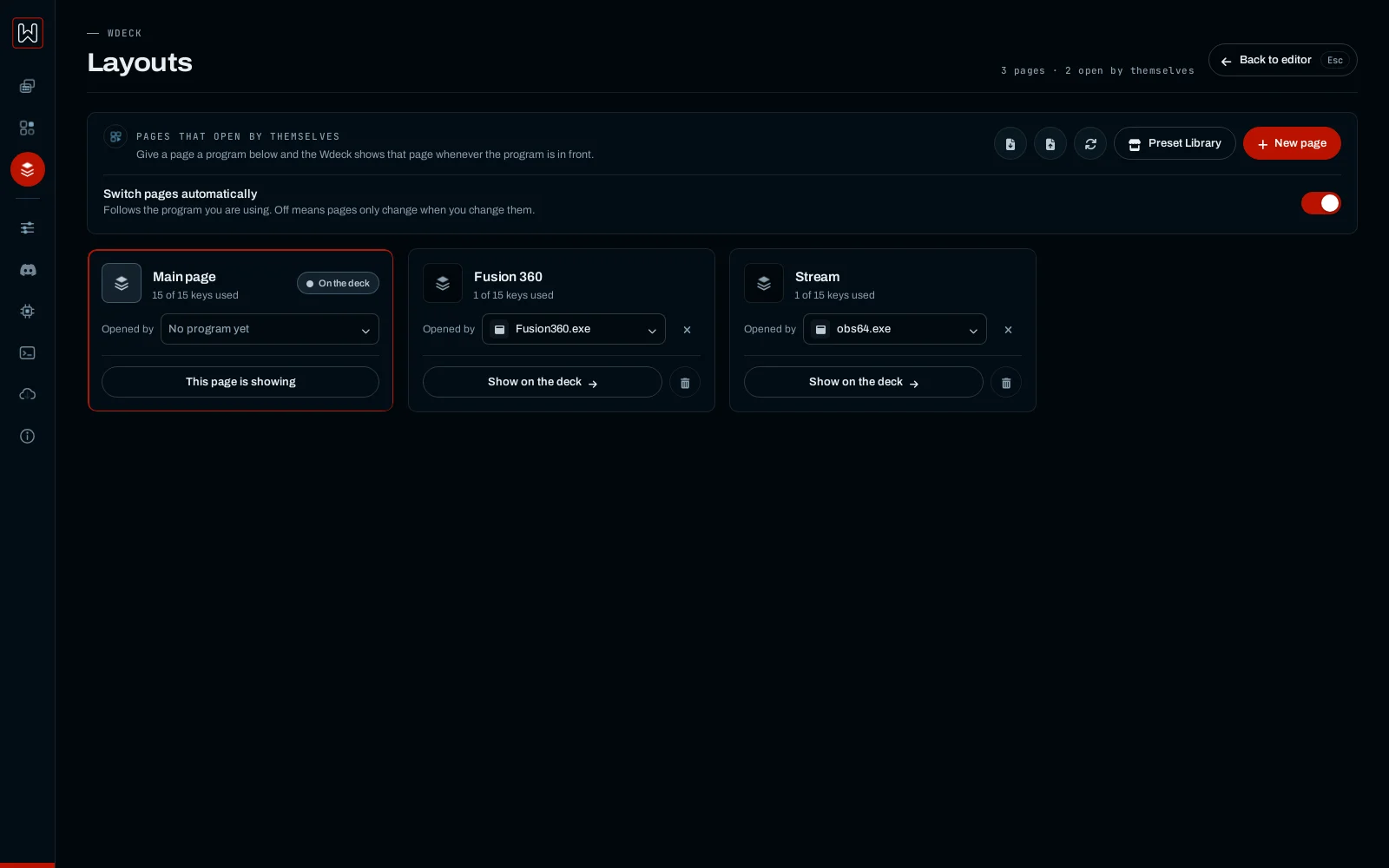
In the Layouts panel you can rename pages, and install ready-made layouts from the Preset Library: Fusion 360, KiCad, Office, Chrome, OBS and more. A preset is added as a new page, nothing is overwritten.

Pages in the Layouts panel
Step 05

Let pages follow your programs.

Link a page to a program and the deck shows it whenever that window is in front, and returns to the main page when you leave it. Turn it on or off with “Switch pages automatically” in the Layouts panel.

Pages linked to programs
Step 06

Sound and media.

App volume keys turn one program up or down or mute it; the key shows that program's icon and a level bar. Audio output switches the default device, for example speakers ↔ headset.

The media keys play, pause and skip in whatever is playing, and the play key shows the album art.

Step 07

Discord.

5 min onceDiscord desktop app

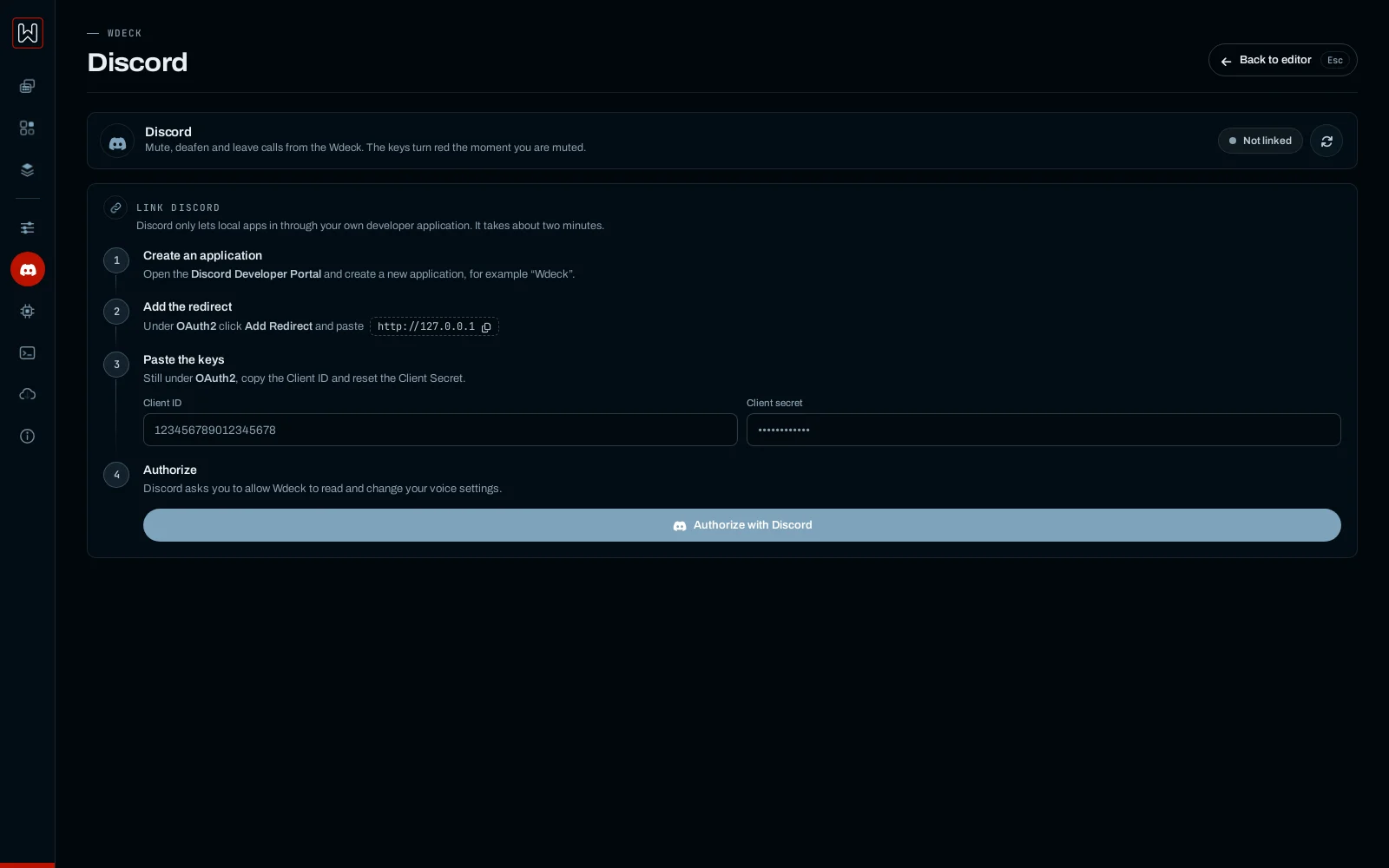
Mute, deafen and leave keys talk to the Discord app on your PC. The first time, the Discord tab in the app walks you through creating a small Discord application and pasting its Client ID and Secret; after that the keys stay in sync: the mute key turns red the moment you are muted.

Linking Discord
Step 08

OBS Studio.

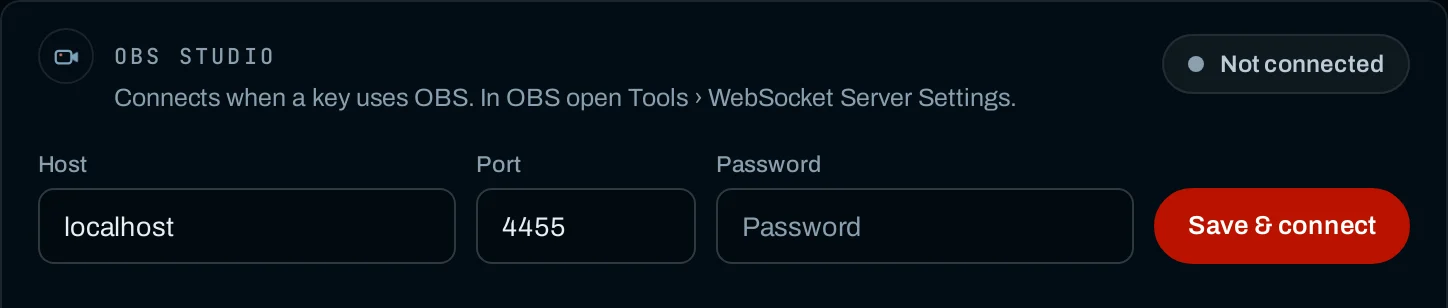
In OBS turn on Tools → WebSocket Server Settings, then enter the port and password in the app under Settings → General → OBS Studio. Scene, Record, Stream and Mute Source keys show the live state.

The OBS Studio card in the settings
Step 09

Firmware updates.

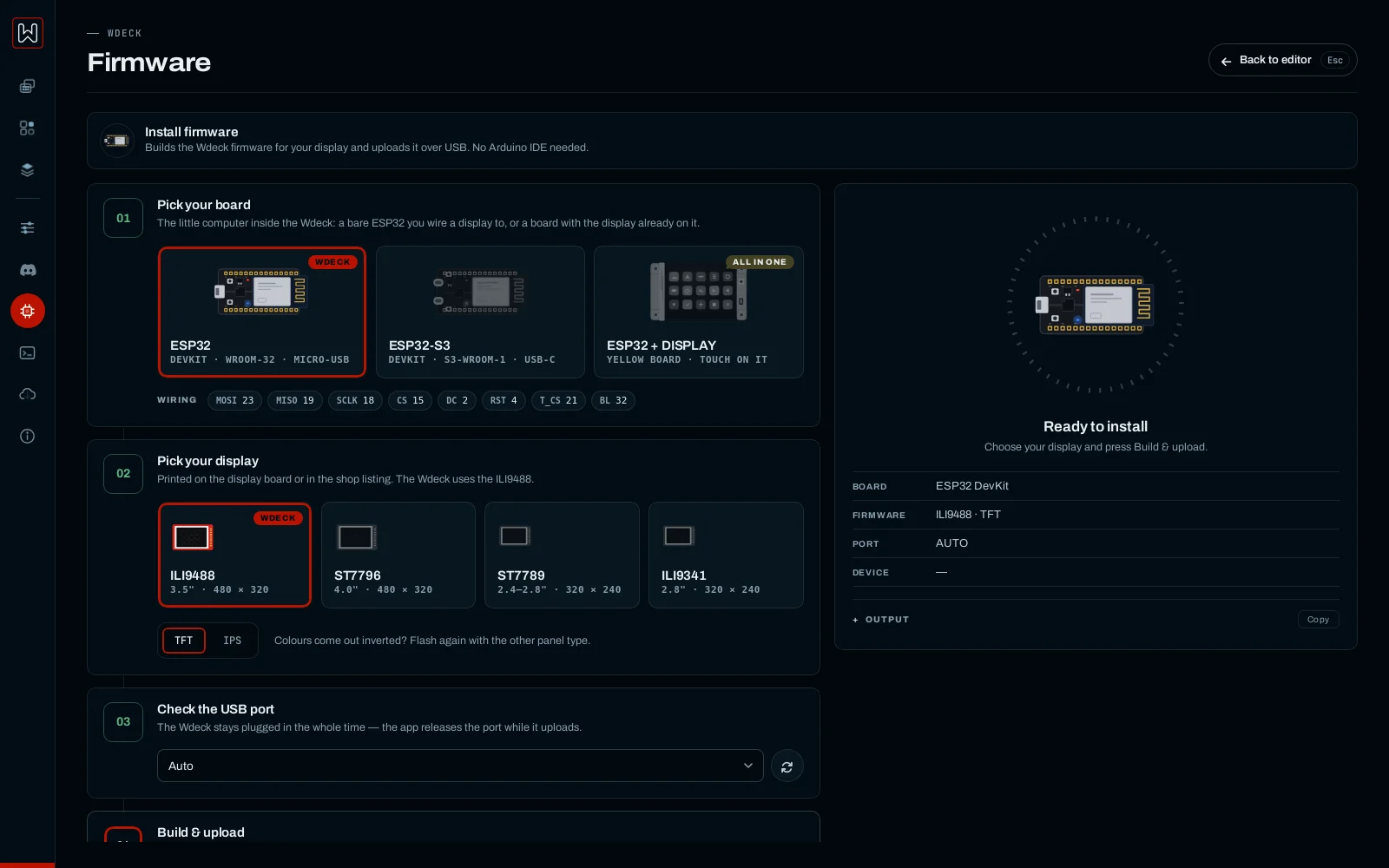
The Firmware tab in the app finds the deck, prepares the firmware for your display and installs it. The first time it downloads the build tools, which takes a few minutes. The web flasher does the same from Chrome or Edge.

Install firmware
Step 10

Back up a layout.

Export the layout of a deck to a file from the Layouts panel and import it later or on another PC.

Only import layouts you trust: a key can start any program on your computer.